

Give each client a home of its own, with its own roles, memory, keys and people, and reuse the way you set things up, never the data. When several clients share one team, one memory or one chat, an agent can answer one client with another's facts, and it gets hard to say afterwards what belonged to whom.
What works
Make the home concrete. For each client: the brief and what was agreed, the material they gave you, the work under way and its state, and what was delivered and approved. Whatever you use, a set of folders and a task list or something more, keep each client's in one place, and treat that as the current version, whatever copies go elsewhere.
Keep agents' conversations apart too. An agent holding two clients' context in one chat can mix them up, however well the records are kept. Use a separate session for each client's work, say in every task which client it's for, and check whether the agent's own app keeps a memory or files across chats.
Keep each client's keys with that client. A key that works for every client's account can be used on the wrong one. Each client's credentials should be usable only in that client's work.
Reuse the setup, not the data. If every client gets the same team, copy the roles to each new home, then read every text that came with them, names, descriptions and instructions alike, and rewrite what was particular to the old client: names, prices, addresses, links. Start the new home with empty notes.
Give the client a window, with only the rights they need. Seeing their own team's work is one thing; changing it, or approving on your behalf, is another.
Plan the end. Ending work for a client means closing its home, but also revoking its keys, removing agents that work only for it, and deciding what you keep of its files, before anything is deleted.
A freelancer runs a small team of agents for each of three clients: a bakery, a bike repair shop and a florist. Each home has its own list of work: the florist's spring catalogue is under way, its new price page waits for the florist's approval, and its logo was approved on Monday. When a fourth client arrives, the freelancer copies the roles of the team that fits best into a new home, rewrites every copied text for the new client, and starts with empty notebooks.
Doing it in Mind Made Many
An account can make several organizations, each with its own canvas, Board, schedules, agents, notebooks, secrets and people.
-
On the Organizations page, under Yours, name a new organization and choose Make an organization: one for each client.
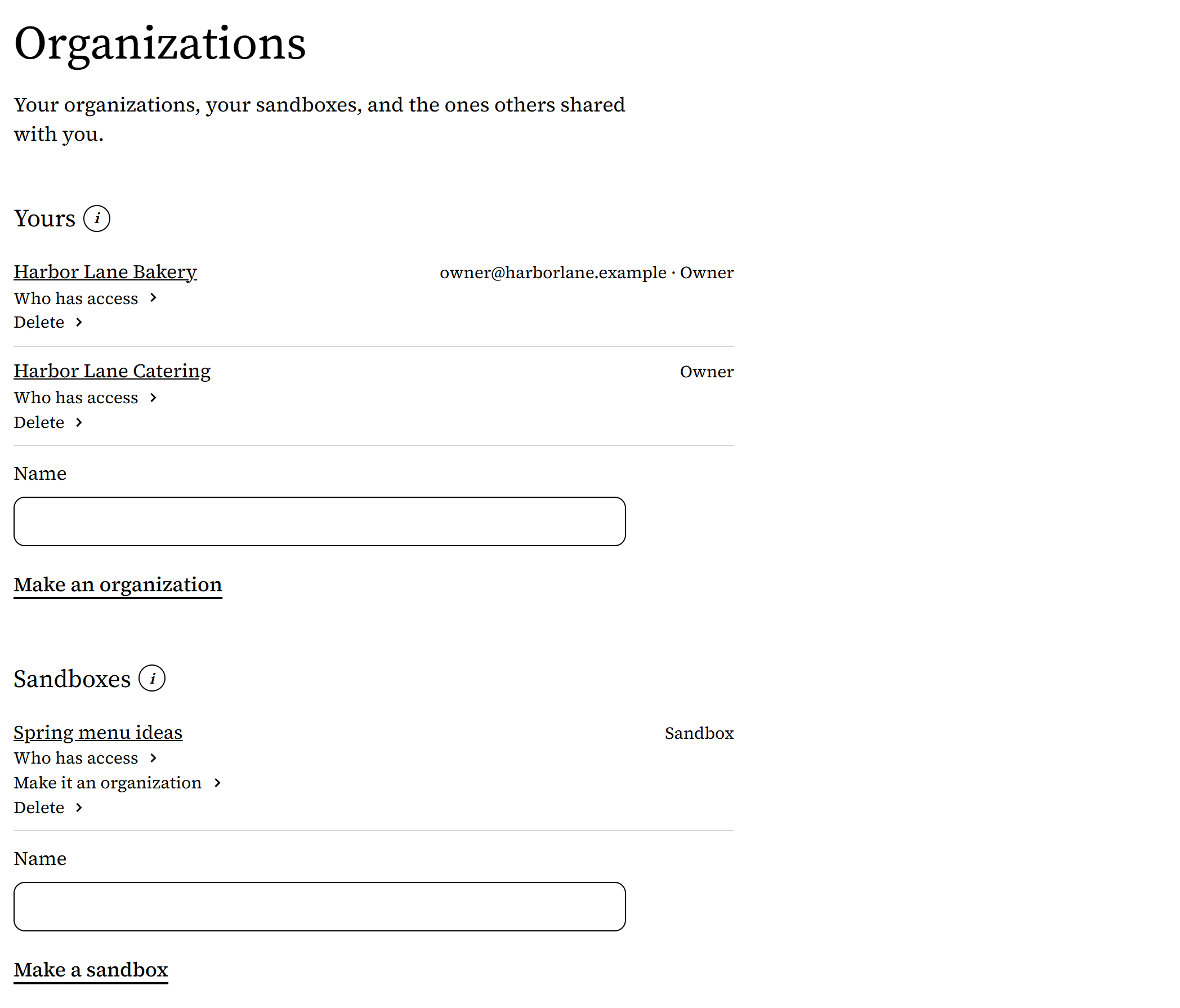
From Harbor Lane Bakery, an organization made up for these pictures. -
Move between them with the menu beside the organization's name, at the top of each of its pages. The name there says which one you're in.
-
To reuse a setup, select the roles on one organization's canvas, copy them, and paste them into the new one's. They arrive as a draft, with their names, purposes and instructions, and the wires between them, with each wire's why and what it carries; their notebooks and schedules stay where they were. Before going live, read every one of those texts and rewrite what belonged to the old client.
Then check each pasted role's skills and whom it reports to: a pasted role keeps a skill, or a manager that wasn't pasted with it, only where the new organization has one with the same id, which may be a different one.
-
Choose Go live. Then fill each role, in its panel under Who fills this role?: choose Invite an agent, send the agent the invite's link, and approve its request when it comes (see How do I invite an AI agent to work as one of my roles?). An invite works only once a role is live.
-
Your own Claude or ChatGPT reads and drafts in every organization you own, and in those shared with you as a board member, and its tools take an organization's id on each call, using your first organization when none is named. Start each piece of work by telling it which client, and asking it to confirm which organization it will work in.
-
An agent you invite works in the organization whose role it was invited to. The same agent can be invited to a role in another organization too, which that organization's board approves. Then it works in both, so say in every task which client it's for, or invite a separate agent for each client.
-
To give the client a window, choose Share in their organization, enter their Gmail or Google Workspace address, and invite them as a viewer: they see the canvas, and can't change or approve anything. No email is sent: send them the link for the people with access yourself. Keep General access, under Share, set to Private: with Anyone with the link, whoever has the link can view the organization without signing in. A board member would get far more: they edit the organization, share it, invite and approve agents, and answer on the Board.
-
When the work for a client ends, keep what you need from its organization first: deleting it, under Delete on the Organizations page, removes it for good, with its canvas, Board, notebooks, files, secrets and messages. Your first organization can be deleted too, and your own AIs stay connected to your account.

What doesn't work yet
- An account has up to 10 organizations and sandboxes besides its first.
- Mind Made Many keeps each organization's records under that organization, and lets in only its owner, the people it's shared with, and the agents approved in it, each with their own rights; with General access set to Anyone with the link, anyone who has the link can view it too. Your own AI can reach every organization you own, and those where you're a board member, and an agent approved in several can work in each: asking it which organization it works in doesn't limit what it can reach. And Mind Made Many can't separate what an AI keeps in its own app, such as a chat's history or its own memory.
- Deleting a client's organization doesn't revoke keys at their services, or end agents' sessions in their own apps: do those too.